Valorant has officially introduced support for AMD Anti-Lag 2, providing RDNA (6000-series) GPU users with a dedicated in-game tool to compete with Nvidia’s Reflex technology. While this is a major addition for the competitive shooter, initial testing suggests that players with high-end AMD rigs shouldn't necessarily celebrate just yet.
Although the feature was included in the 12.09 patch notes over a week ago, it is not enabled by default. If you want to try it, you must manually toggle the setting at the bottom of the main Graphics settings page.
Testing Anti-Lag 2 Performance and Latency
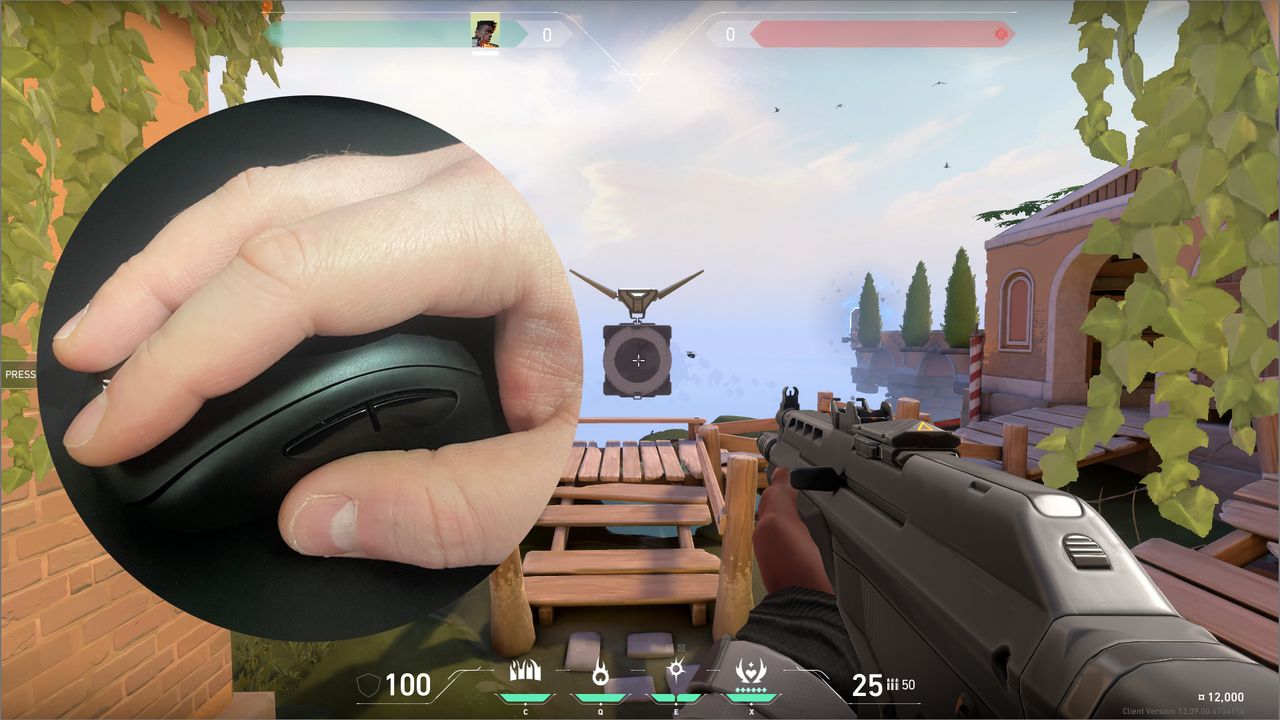
To determine if this feature actually delivers on its promises, I utilized an Nvidia Latency and Display Analysis Tool (LDAT). This hardware measures the precise time elapsed between a physical mouse click and the moment the gun's muzzle flash appears on screen.
After averaging results over more than 150 individual clicks, the data revealed a negligible difference:
- Anti-Lag 2 OFF: 10 ms (934 fps)
- Anti-Lag 2 ON: 9.84 ms (921 fps)
The latency reduction was incredibly slim. Interestingly, when I attempted to use both the AMD driver-level Anti-Lag and the in-game Anti-Lag 2 simultaneously, the latency actually increased to 10.03 ms. It remains unclear if the driver setting overrides the in-game toggle or if these results simply fall within the realm of natural hardware variance.
Should You Enable Anti-Lag 2?
The effectiveness of this technology seems heavily dependent on your specific hardware configuration. During testing, I used a high-end enthusiast rig featuring an AMD Radeon RX 7900 XT and a Ryzen 7 7800X3D. On a system this powerful, the input-to-display pipeline is already incredibly fast, leaving very little room for optimization.
For players with lower-end hardware, the benefits may be more pronounced, though there is a trade-off to consider:
- Frame Rate Stability: While average FPS remained relatively stable in the practice range, 1% lows saw a noticeable dip.
- Performance Impact: In my tests, 1% lows dropped from 565 fps down to 489 fps when the setting was active.
- The Balancing Act: Enabling the feature might reduce input lag slightly at the cost of smoother frame delivery.
Ultimately, because the toggle is easily accessible within the Valorant settings menu, the best course of action is to test it on your own machine and decide if the marginal latency gains are worth the potential hit to your minimum frame rates.