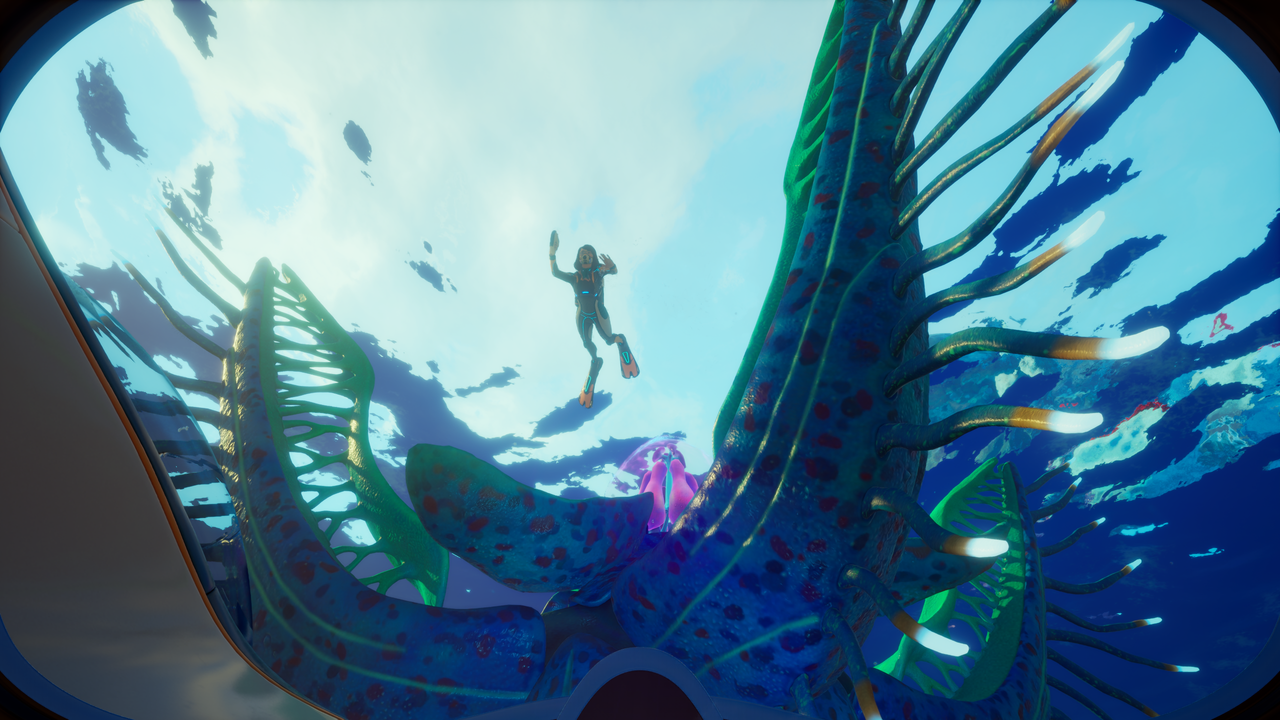
While Subnautica 2 is off to an impressive start with strong sales figures, players should remember that this is still an early access title. Even though the game is highly polished, bugs are inevitable during this development phase. One particularly frustrating issue currently affecting players is the inability to select a 4K resolution, even when running the game on high-end hardware paired with a 4K monitor.
Fortunately, if you are struggling with display settings, there is a remarkably easy fix that restores your native resolution options.
The Quickest Fix for Subnautica 2 4K Resolution Issues
You don't need to dive deep into complex menus to resolve this. A simple sequence of setting changes can force the game to recognize your monitor's capabilities:
- Open the graphics settings menu in-game.
- Select Fullscreen mode (this will likely default your resolution to 1080p).
- Hit Apply.
- Restart the game entirely.
Once you relaunch, the 4K resolution option should magically appear in your settings. This method has been verified across multiple machines and effectively squashes the bug for most users.
Alternative Solutions if the Simple Fix Fails
Because gaming PCs can be finicky, some players may require more advanced workarounds if the initial fix doesn't work for them. Based on community feedback from Reddit, here are a few alternative methods:
Windows Display Scaling
Some users have found success by adjusting their OS settings. Try setting your UI scale to 100% within the Windows 11 display settings menu, as this appears to bypass the resolution bug for some configurations.
High DPI Scaling Override
If scaling adjustments don't work, you can try modifying the game's executable properties:
- Locate the Subnautica 2 .exe file.
- Open the Properties menu and navigate to the Compatibility tab.
- Check the box for "Override high DPI scaling behaviour."
- Restart your system or the game to see if the resolution unlocks.
Manual Config File Editing
If all else fails, you can perform a manual override by editing your configuration files. Navigate to the following file path on your PC: C:\Users\[name]\AppData\Local\Subnautica2\Saved\Config\WinGDK\GameUserSettings.ini
Look for the entries marked "LastUserConfirmedDesiredScreen" for both width and height. You can manually input your desired 4K dimensions here. Just ensure you save the file before relaunching.
While Subnautica 2 certainly has its quirks, it remains a smooth experience overall. If you are looking for a massive frame rate boost, we recommend dropping your graphical settings from Epic to High, which provides an excellent performance lift without sacrificing much visual fidelity.