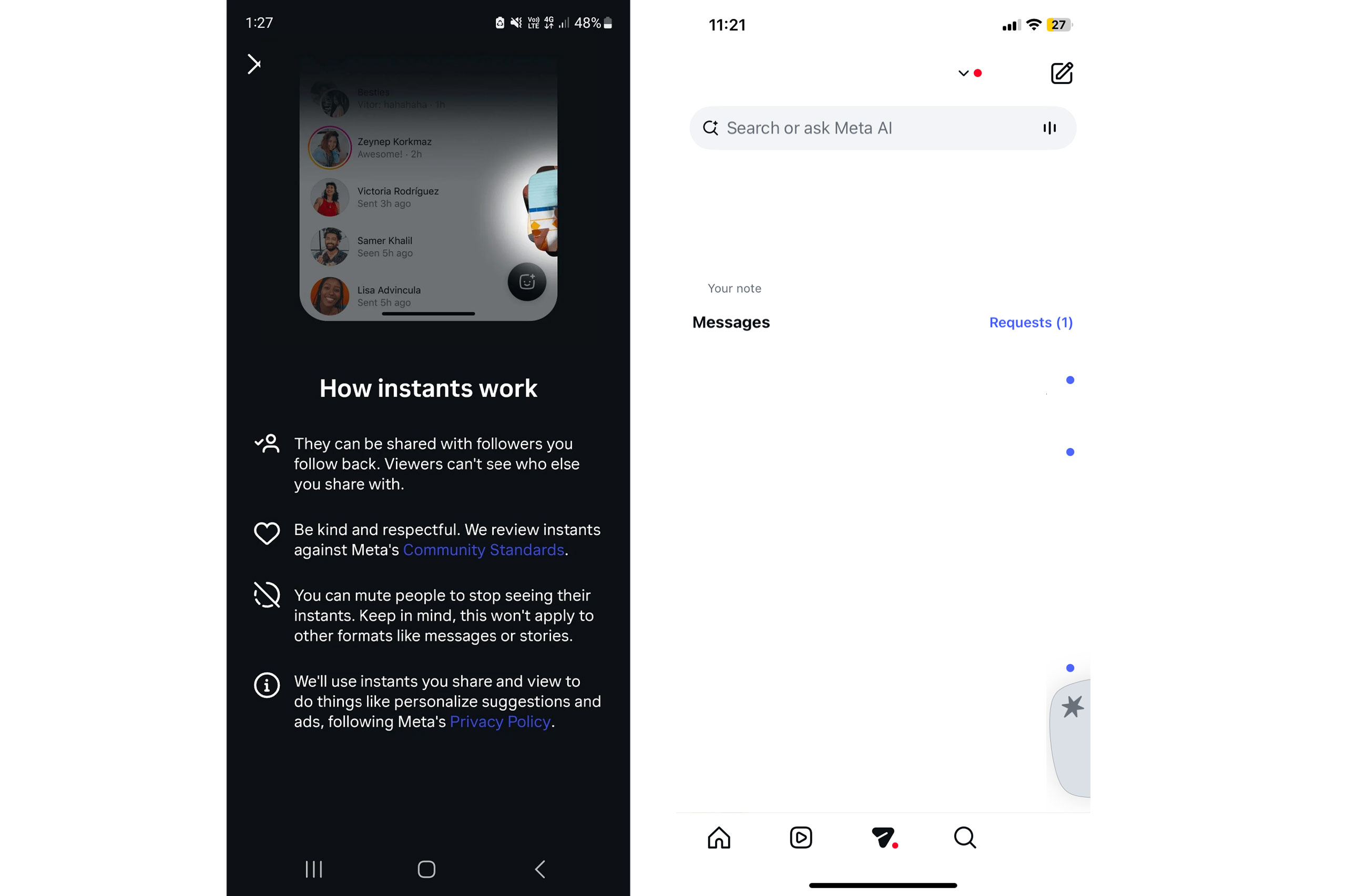
Instagram’s latest addition to its content ecosystem, Instants, was introduced with the promise of capturing real-life moments as they unfold. Designed to mimic the ephemeral nature of Snapchat stories, this feature allows users to share raw, unfiltered glimpses of their day directly to their followers. However, the ease of sharing has led to a growing number of complaints from users who find themselves unable to stop the flow of content or remove images they didn’t mean to send.
While Meta markets the tool as a way to connect more authentically, the lack of granular control has frustrated many. If you are looking to disable this feature entirely or pull back content that has already been published, here is what you need to know about managing your presence on Instagram.
Understanding the Instants Feature
Before diving into the controls, it is important to understand how Instants functions within the app. Unlike standard posts or even regular Stories that disappear after 24 hours, Instants are designed to be a continuous stream. When you activate the feature, you are essentially opting into a mode where your audience expects real-time updates.
The primary issue driving the search for a "turn off" button is the difficulty in stopping the upload process once it has started. Unlike traditional Stories, where you can simply close the app and the upload cancels, Instants often continue to queue or publish depending on your current settings. This creates anxiety for users who are unsure who is viewing their content or who want to curate their feed more strictly.
How to Turn Off Instagram Instants
Currently, Instagram does not offer a simple "global toggle" to permanently disable Instants for all future use. Instead, the feature is tied to how you create content. To stop using Instants, you must avoid the specific creation path that triggers the feature.
- Avoid the Live Photo Upload Path: Instants are typically triggered when you upload a Live Photo or a burst of photos from your camera roll. To avoid accidentally activating them, ensure you are uploading static images instead.
- Check Story Settings: Navigate to your Settings > Your Activity > Stories. Look for any prompts related to "Suggested Instants" or "Auto-Upload" and disable them.
- Clear Your Upload Queue: If you have already queued Instants, go to your Profile > Professional Dashboard > Content You’ve Scheduled. Here, you can delete any pending Instants before they go live.
Retracting Accidentally Shared Photos
If you have already sent photos via Instants and wish to remove them, the process is similar to deleting a standard Story, but with some critical timing constraints.
- Act Quickly: Instants are designed to be ephemeral. Once they are viewed by a significant portion of your audience, they may be cached on other users' devices.
- Delete from Your Story: Go to your profile, find the Instants story, and tap the three dots in the top right corner. Select Delete to remove it from your profile and your followers' feeds immediately.
- Archive Instead: If you want to keep the memory but remove it from public view, select Archive instead of Delete. This hides the Instants from your followers while preserving them for you.
Why Users Are Seeking Control
The backlash against the current implementation of Instants stems from a lack of transparency. Many users reported that they did not understand that uploading a Live Photo would automatically trigger the Instants format, which has different visibility settings than standard posts.
For those who value privacy, the inability to easily opt out of this "real-time" sharing model is a significant deterrent. As the feature rolls out further, it is expected that Instagram will introduce more granular controls, allowing users to decide on a per-post basis whether an update becomes an Instant or remains a standard post. Until then, manual deletion and careful uploading remain the only ways to maintain control over your digital footprint.